|
MARKETING LIBRARY SERVICES
An Overview of AI Tools to Help Promote Your Library and Your Work
by Barbie E. Keiser
| These tools are all free, low-cost, or offer a free trial. If I learned to use them, anyone can. |
What if the AI tools that are quietly reshaping marketing could also be used to promote libraries? For months, I’ve been collecting examples of AI tools that can enable any library worker to produce professional posters, infographics, presentations, and short-form videos with minimal effort.
A number of these tools can help researchers turn dense papers into interactive formats and seminar-ready materials, clearing hurdles that normally hinder researchers and librarians from sharing more widely. Some of the resources I’ve discovered are hidden behind enterprise tools librarians use every day. I wanted to bring them to light and spur the imagination of everyone, even solo librarians, because of their ease of use and no-cost/low-cost options.
As the author of the AI Corner column in the Online Searcher section of Computers in Libraries and a former writer for Marketing Library Services, I’ve enjoyed compiling a list of AI tools that sit at the intersection of technology and marketing. Wherever I can, I’ll point you to examples of putting these tools to work, so you can see what’s achievable before you dive in. These tools are all free, low-cost, or offer a free trial. If I learned to use them, anyone can.
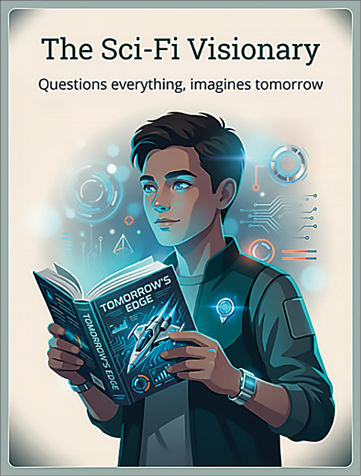 |
| The author created this poster using Gamma. |
Updating Your Websites
Your library website may have been designed and developed by others, with little input from the library staff or marketers. But periodically, you may have an opportunity to recommend tweaks.
Stitch—Using screenshots of your existing website as visual starting points, you can ask Stitch (stitch.withgoogle.com) to
suggest changes for the site. A carefully crafted prompt such as this can help the library staff brainstorm with Stitch: “This is our library homepage. Our primary users are community college students, many of whom access the library from mobile devices. Identify the major tasks a student would need to accomplish and propose three alternative information architectures.” You might add examples of questions students pose at the reference desk, failed searches, confusing terminology, high-demand services, and observations from instruction sessions.
With that data, use the “generate variations” toggle. Stitch will present task-centered, user-centered, and search-centered alternative views. Users can prompt Stitch to rethink its proposed designs. The Stitch prototypes can be starting points for discussions with web developers, or you can export the Figma file code output and hand it to your developers to review, modify, and use.
Within the Stitch AI command space, users can choose between web or app. There are also options to use 3 Flash HTML coding, 3.1 Pro that prioritizes quality and reasoning over speed, or the redesign function from a screenshot using Nano Banana Pro. Stitch then presents a design panel, and if you’ve pointed Stitch to your existing website, it will recognize the color palette, typography, spacing, and layout used and offer options that blend with the site. Next, Stitch creates an editable document summarizing the project’s goals, target audience, and features/requirements based on the user’s initial prompt.
Julius—Should you need to develop a site from scratch, there are many AI website builders to choose from. For example, Julius (julius.ai) has a convenient Build Website button under its AI command bar. You can make a blog, a landing page, a portfolio, and more.
Research Guides and Tutorials
Many libraries create subject-specific and class-specific research guides. While younger generations seem to prefer learning from video rather than reading, libraries cling to text-based resources to communicate important research concepts (commonly Springshare LibGuides; springshare.com/libguides). These guides are often-overlooked marketing opportunities for librarians. You could be sharing knowledge and making initial connections with users to give them confidence that engaging with library staff for other reasons will be beneficial. However, there are other tutorial and micro-learning tools that can allow you to easily produce and modify guides and make learning more interactive. My two favorites are Guidde and 7taps.
Guidde—Sign in to this AI-powered video documentation platform (guidde.com) with your workplace email address and click + New to begin your first Guidde. Open Integrations in the left-hand navigation panel and link your browser to Guidde. As you open new tabs and click through to a site, Guidde captures your on-screen movements. When you are finished, a series of screenshots appear for you to edit, with arrows for items
you want to highlight and the text that Guidde has created for the transcript used for the audio text-to-speech generation. It’s amazing how intuitive the tool is, requiring minimal edits. My first Guidde took me 2 hours to complete, but I’m getting faster. Watch how Dakota State University’s Center for Teaching and Learning uses Guidde to demonstrate how to book an appointment (blogs.dsu.edu/hofl/2023/12/14/how-to-book-an-appointment-with-the-ctl). The free subscription is good for up to 25 Guiddes.
7taps—Log in to the 7taps micro-course creator (7taps.com) and click on Create+ to begin. 7taps displays a series of editable learning cards, the first one asking you to “Give this microlearning module a short, captivating title,” with an option to enter details to the title “to hook learners in.” You can add a logo and relevant image to each subsequent card. The right-hand slide-out options suggest what you might want to add next: a card, a quiz, a video, audio, a checklist, or a poll. The Submit option inserts a blank card that asks the learner to upload audio or image files to the course. 7taps’ audio/video upload time constraints are helpful reminders to creators “for keeping things concise” (fastcompany.com/90765919/why-7taps-is-the-best-microlearning-tool-out-there).
One assignment for students in the knowledge management course I teach is to use the concepts they learn to create a business case for a knowledge management project at their organizations (app.7taps.com/wk46Qu67asA). Students have the course syllabus with assigned and recommended readings, but I use 7taps to expand on the instructions, reminding them of the essential elements for building their case for a project that is likely to be approved. Librarians can use this tutorial to help them establish a winning proposal for their next library project.
The button at the top right of each course you make allows
you to share the material with others. Libraries can share 7taps
content through several channels, such as text messaging,
email, Microsoft Teams, and Slack, or they can embed it into
a website or LibGuide “without necessitating an application installation or learner login” (g2.com/products/7taps-microlearning/reviews). Take advantage of 7taps’ “one course for free” option—you won’t regret it.
Posters, Infographics, and Animations
AI tools can help librarians create more appealing posters, incorporating graphics and other visualizations. They can also generate timelines, images, and slide decks, and librarians should make routine use of them as part of library promotion activities.
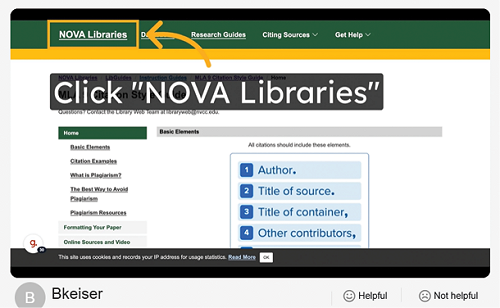 |
| A screenshot from a tutorial the author created with Guidde |
Timelines
AI speeds the creation of timelines. Let’s take a look at some tools in this space.
MakeInfographic—A tool called MakeInfographic can generate a timeline infographic based on a detailed prompt (makeinfographic.ai/ai-timeline-generator).
Preceden—Preceden (preceden.com) allows users to generate a timeline using AI by entering a topic, or it will create one manually by listing a series of events and dates. For example, type “evolution of open access publishing,” and it produces an
editable timeline (preceden.com/timelines/1395458-evolution-of-open-access-publishing/29bf765ab07f2b24).
Image Generation
Napkin—Many of us struggle to select the right graphic. Napkin (napkin.ai) solves this for librarians with dense, text-heavy drafts. Users upload their text, and the tool generates a series of relevant visuals from which they can select the one that best expresses what they mean. There are many types of diagrams, mind maps, and flowcharts from which to choose. A convenient set of tools in the right-hand slide-out lets users polish the visual before exporting it as a .ppt, .png, .pdf, or .svg file.
Papertok—If you want to turn a paper into a short-form video, try Papertok (papertok.com). Scientists can now upload their research papers as .pdfs to Papertok to turn them into 45-second TikTok science videos (fastcompany.com/91566837/scientists-are-turning-research-papers-into-generative-ai-tiktok-videos-papertok). I’ve uploaded articles from library newsletters to generate videos. Papertok creates several script options, allowing the user to select the most suitable one, then refine the text and tone in the editor. Users can regenerate visuals until they’re happy with the storyboard and add credits to finalize a shareable short-form video.
Anime AI and Anifusion—Anime and manga comics are a hit with young people. If you have a photo, try uploading it to Anime AI (animeai.ai) for an anime version. Anifusion (anifusion.ai) lets you select a layout and use prompts to generate a manga comic storyboard. See if the resulting images resonate with this target audience.
Ideogram, BlueWillow, and CapCut—We’ve all searched for clipart and graphics, taking enormous pains to ensure no violation of copyright before we use them. AI-generated images may resolve those issues, but be sure to monitor evolving practices regarding attribution for AI artwork. Ideogram (ideogram.ai) and BlueWillow (bluewillow.ai) allow users to enter a prompt, generate art, and refine it. CapCut has a plethora of prompt ideas to generate images your library can use to promote events (capcut.com/explore/library-posters).
Slide Decks
Gamma—I rely on Gamma (gamma.app) to create slides for conference presentations using its AI-native templates. You can upload an article or book chapter you’ve authored and let Gamma do the heavy lifting. Gamma keeps an active link to original sources so you can go back to one should someone in the audience question the data.
Library patrons often ask where they can find a particular item. So, I used Gamma’s Media Library (found in the left-hand navigation panel) to generate a series of images based on categories of books available in a library (gamma.app/docs/What-your-preferred-book-genre-says-about-you-ylwmkrckcuui1yi?mode=doc), intending to use them as strategically placed posters.
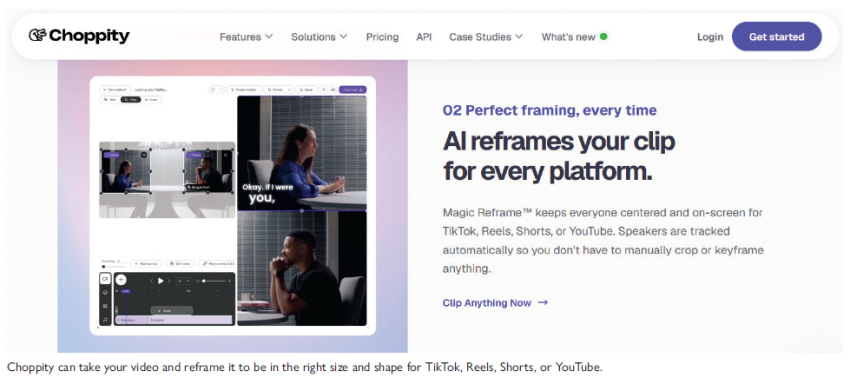 |
| Choppity can take your video and reframe it to be in the right size and shape for TikTok, Reels, Shorts, or YouTube. |
Creating Clips for Social Media
Castmagic—Watch the demo on Castmagic’s homepage (castmagic.io), and note the activities your library does in a week, such as writing a LinkedIn post about your library’s latest event with three to five takeaways from the session, drafting a newsletter about a topic, and more. Castmagic streamlines the distribution process by creating social media snippets from editable transcripts, but there are other ways to generate short clips from audio/video, such as recorded lectures, library/infolit
instruction, or an interview with an author, scholar, or faculty member. There is no editing required.
It’s amazing how these tools find the essence of a lengthy talk:
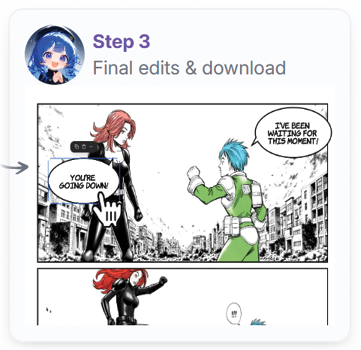 |
A screenshot from Anifusion’s
process for creating comics |
- 2short.ai is useful if your library has a
YouTube channel.
- Adobe Express (adobe.com/express/feature/ai/video/convert/long-to-short) has a new clipping feature that identifies what’s clip-worthy from
within your video.
- Choppity (choppity.com/features/clip-anything)
is great for storytelling.
- Descript (descript.com/clips) treats videos as editable text. Its AI assistant, Underlord, extracts short clips.
- Lumen5 (lumen5.com/features/video-clip-maker) offers good prebuilt templates, but where it
excels is with branding options such as logos
and watermarks.
- OpenClip (openclip.app) is perhaps the
most straightforward clipping tool around.
Don’t be fooled by the site, which makes the
tool appear geared toward consumers rather
than professional organizations.
- OpusClip (opus.pro) is one of the best options for automatically finding good quotes in longer interviews. However, you get a limited number
of free clips, and it’s less robust on branding
than some of the other tools, if that is important
to your library.
- Voicepen’s (voicepen.ai) dashboard leaves nothing to chance: Select the source of your audio, video, or website URL, and it will create a blog post.
- BlogTweet (blogtweet.xyz) uses AI to turn a blog
post into an X (formerly Twitter) thread. Give BlogTweet the URL for your blog post, indicate the number of posts you desire, tell BlogTweet whether to include emojis or hashtags, and select the appropriate tone for your thread (professional
or casual). My suggestion is to try both tones and
see which does a better job for your audiences.
- Cohesive (cohesive.so) is a more-polished version of BlogTweet and offers additional options, but they come at a price.
- Keyframes Studio (keyframes.studio) frames your videos for mobile screens, auto-generating subtitles. Users can select relevant sounds and images from Keyframes’ libraries to add their images and can easily export them to social media.
Library Data Analysis
Graphy—Libraries collect a great deal of data about the use of their collections. Librarians may download data (.csv format) from numerous sources, uploading it for review in Excel or Google Sheets. Comparing data from last month, semester, or year by library (campus, faculty, or branch) or patron type (undergraduate, graduate, staff, faculty, children, teen/YA) can be a complex process. You can let Graphy’s data engine (graphy.app) analyze your dataset and highlight “the insights that matter most.” With Graphy, you can chat with your data, brand your charts, embed them into slide decks, and share them in social posts. Think about how you might use Graphy (or similar tools) to tell your library’s story.
|